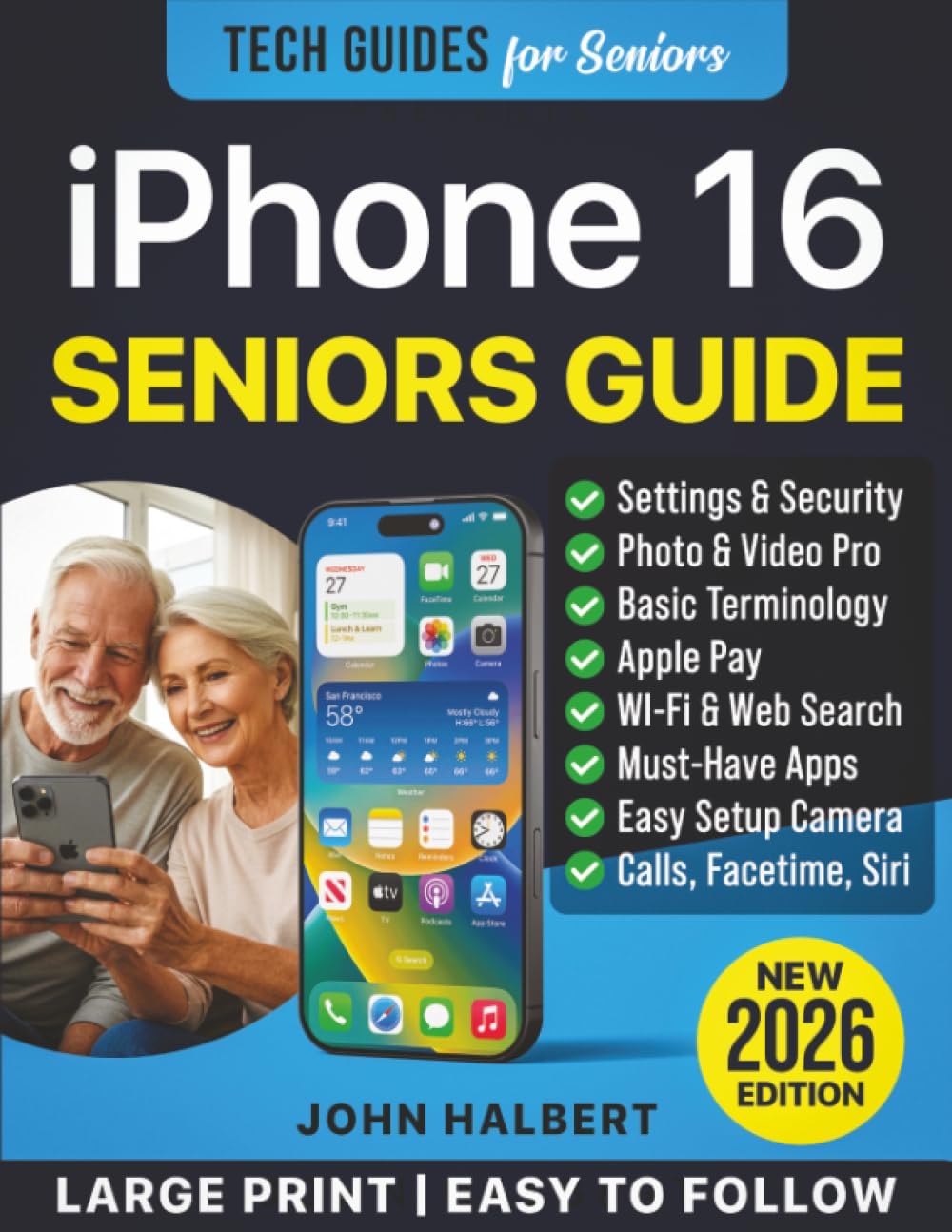
This iPhone 16 for Seniors guide will help you. Even if you’ve never used an iPhone before. This guide is built for seniors, first-time users, and anyone who wants clear step-by-step help without tech jargon.
You’ll learn the simple controls, how to set up Wi-Fi, use FaceTime and Siri, and take better photos with the camera. Along the way, you’ll also see how to avoid common mistakes so your phone feels helpful, not confusing.
Start with the first steps, and the rest of the iPhone 16 will make a lot more sense.
Learn the iPhone 16 for Seniors Basics Before You Start Tapping
Before you use Wi-Fi, FaceTime, Siri, or the camera, it helps to know the parts of the phone you will touch most often. Our iPhone 16 for Seniors guide makes it easier to use once the screen and buttons feel familiar. A few minutes here can save a lot of guessing later.
What each button and screen area does
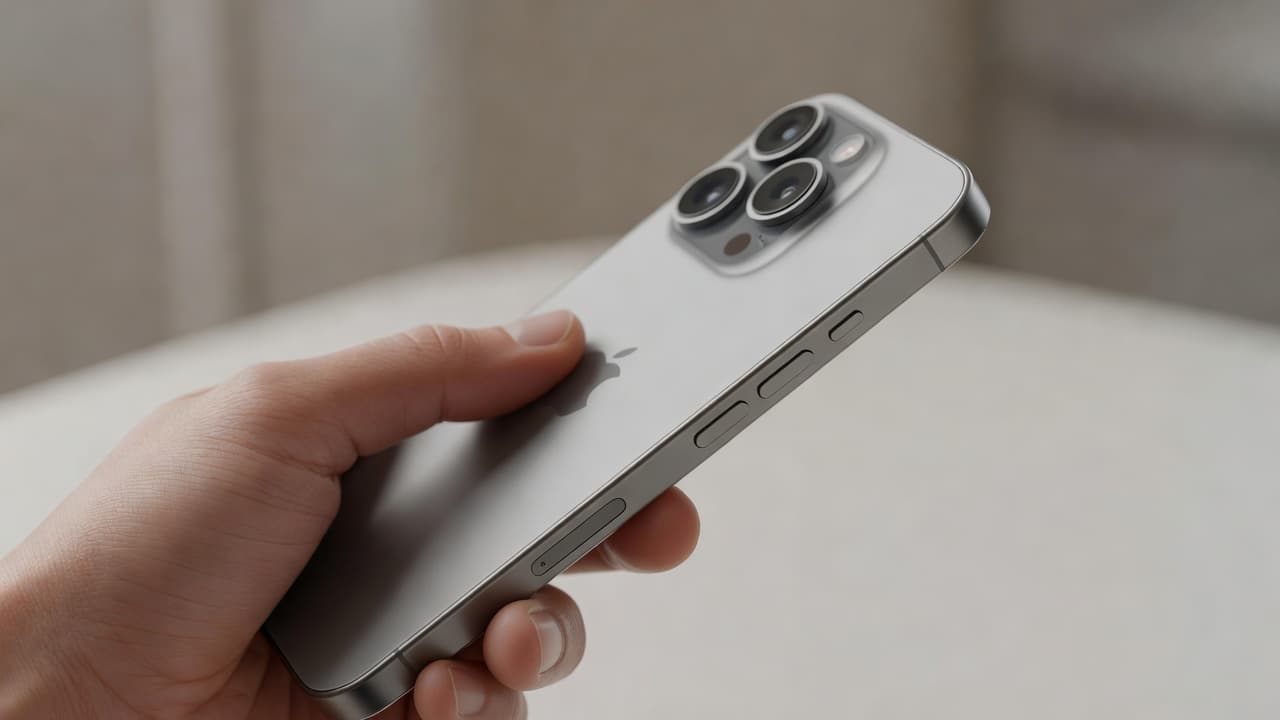
The side button is on the right edge of the iPhone 16. Press it once to wake the screen, press it again to lock the phone, and hold it to turn the phone on or off. It also works with Siri, depending on your settings.
The volume buttons are on the left side. The top button raises the sound, and the bottom button lowers it. You can use them for calls, videos, alarms, and ringtones.
The charging port is at the bottom of the phone. You plug in the cable there to charge the battery.
On the screen, the Home Screen is the main page with your app icons. It’s like the front room of the phone, where you start most tasks.
The Control Center gives you quick access to common settings like Wi-Fi, brightness, flashlight, and sound. Open it by swiping down from the top-right corner.
The Notification Center shows alerts, messages, and recent reminders. When learning about the iPhone 16 for Seniors, you can open it by swiping down from the top-left side or from the top of the screen, depending on what you’re trying to check.
How to wake, unlock, and get back to the Home Screen
To wake the iPhone 16 for Seniors, press the side button once or tap the screen. The display lights up and shows the lock screen instantly.
If Face ID is set up, hold the phone at a comfortable distance and look at it. When the lock icon opens, swipe up from the bottom of the screen. If Face ID does not work, move the phone a little closer or wipe the top of the screen clean.
To leave an app and return to the Home Screen on the iPhone 16 for Seniors, swipe up from the bottom edge and pause briefly, then let go. That gets you back to the main screen with your app icons.
If you feel stuck, just swipe up again or press the side button to lock the phone, then wake it once more. Many people use that as a quick reset when they lose track of where they are.
A few simple movements make a big difference:
- Tap an app to open it.
- Swipe to move between screens or pages.
- Swipe up and pause to see open apps.
- Swipe up from the bottom to return home.
For a basic walkthrough of the iPhone layout, Apple’s iPhone user guide is a helpful reference.
Simple settings that make the iPhone easier to use
A few settings can make the iPhone much easier to see and hear. Start with brightness. Open Control Center, then drag the brightness slider up or down until the screen feels comfortable.
Next, check text size. Go to Settings > Display & Brightness > Text Size and move the slider until the words look clear. If the phone still feels hard to read, turn on Bold Text in the same area.
Sound is just as important. Use the volume buttons to adjust audio during a call or while playing music. For ringtones and alerts, go to Settings > Sounds & Haptics and set a level that’s easy to notice.
Accessibility tools can help a lot, too. Zoom makes parts of the screen larger, Larger Text improves readability, and Speak Screen can read text aloud. Apple’s iPhone accessibility features page gives a clear overview of these options.
If the screen feels too busy, make one change at a time. A small increase in text size or brightness can make the phone feel far more comfortable right away.
Set Up Wi-Fi, Apple ID, and the First Things You Need
Once the basics feel familiar, the next step is getting your iPhone 16 for Seniors ready for everyday use. Wi-Fi, Apple ID, and a few simple safety settings are the foundation.

Connect your iPhone 16 to Wi-Fi the easy way
Start with Wi-Fi, because it helps the phone finish setup and download apps faster. Open Settings, tap Wi-Fi, then turn Wi-Fi on if it is off. Your phone will look for nearby networks and show a list of names.
Tap your home network name, then enter the password carefully. If you see the Wi-Fi symbol at the top of the screen, the connection worked. You can also open Safari or another app to check that the internet is working.
If the password is wrong, the iPhone 16 for Seniors will tell you. Tap the network again and type it one more time, slowly. If the network does not appear.
A weak signal often looks like a setup problem, but it may just be distance from the router.
For Apple’s basic steps, connect to Wi-Fi on iPhone gives a clear reference.
Sign in with Apple ID and understand why it matters
Your Apple ID is the account that ties your iPhone 16 for Seniors to Apple services. It helps you download apps, back up photos, use FaceTime, and keep your information in sync.
When you sign in, use your own email and a password you can remember. If the phone asks for verification, follow the prompt on the screen and enter the code carefully. That step is normal and helps protect your account.
Keep your sign-in private. Do not share your password with anyone who does not help you manage your devices. If you need to make a new account, Apple’s how to create a new Apple Account page explains the process in plain language.
A safe sign-in usually means:
- Use only your own email address for the account.
- Type the password yourself when possible.
- Watch for verification codes and enter them only on your device.
- Skip public Wi-Fi for account changes if you can wait until you are home.
Once you sign in, the iPhone 16 for Seniors can start working the way most people expect. Your apps, photos, and services can stay connected in one place.
Check for updates and basic safety settings
Before you settle in, make sure your iPhone 16 for Seniors is up to date. Open Settings, tap General , then tap Software Update. If an update is ready, follow the on-screen steps and keep the phone plugged in if the battery is low. Updates help the phone stay secure and fix small problems.
Next, set a passcode. This is your main screen lock, and it helps protect your phone if it is ever lost or picked up by someone else. Go to Settings > Face ID & Passcode, then choose a passcode you can enter easily but others cannot guess.
Apple’s passcode setup guide shows the exact path if you want a quick reference.
A few simple habits go a long way:
- Keep automatic updates on when possible.
- Use a passcode every time the phone asks for one.
- Do not tap unknown links in texts or emails.
- Restart the phone once in a while if it starts acting slow.
That small setup routine gives you a phone that is ready for calls, photos, apps, and FaceTime without extra fuss. Once these basics are in place, the rest of the iPhone feels much easier to handle.
Use the iPhone 16 Camera to Take Better Photos and Videos
The iPhone 16 for Seniors camera is simple once you know where to tap. You do not need to study settings to get a good picture. Start with the basics, keep the phone steady, and let the camera do most of the work.
A clean lens, good light, and a steady hand often matter more than any fancy feature. Once those pieces are in place, you can take clear photos, record short videos, and find everything later in the Photos app without any fuss.
Take photos, record videos, and switch camera modes
Open the Camera app from the Home Screen or by swiping left on the lock screen. The camera opens in photo mode by default, so you can point the phone at what you want to capture and tap the white button at the bottom of the screen to take a picture.
If you want to record video, swipe to Video and tap the button again to start. Tap it once more to stop recording. For quick clips, that is all you need.
Switching modes is just as easy. Swipe left or right on the mode bar until you see the one you want, such as Photo, Video, Portrait, or Pano. Keep it simple at first, because photo and video mode cover most everyday moments.
To focus on your subject, tap the spot on the screen where you want the camera to sharpen. The iPhone 16 for Seniors will adjust the focus there, which helps with faces, flowers, pets, and anything else you want to stand out.
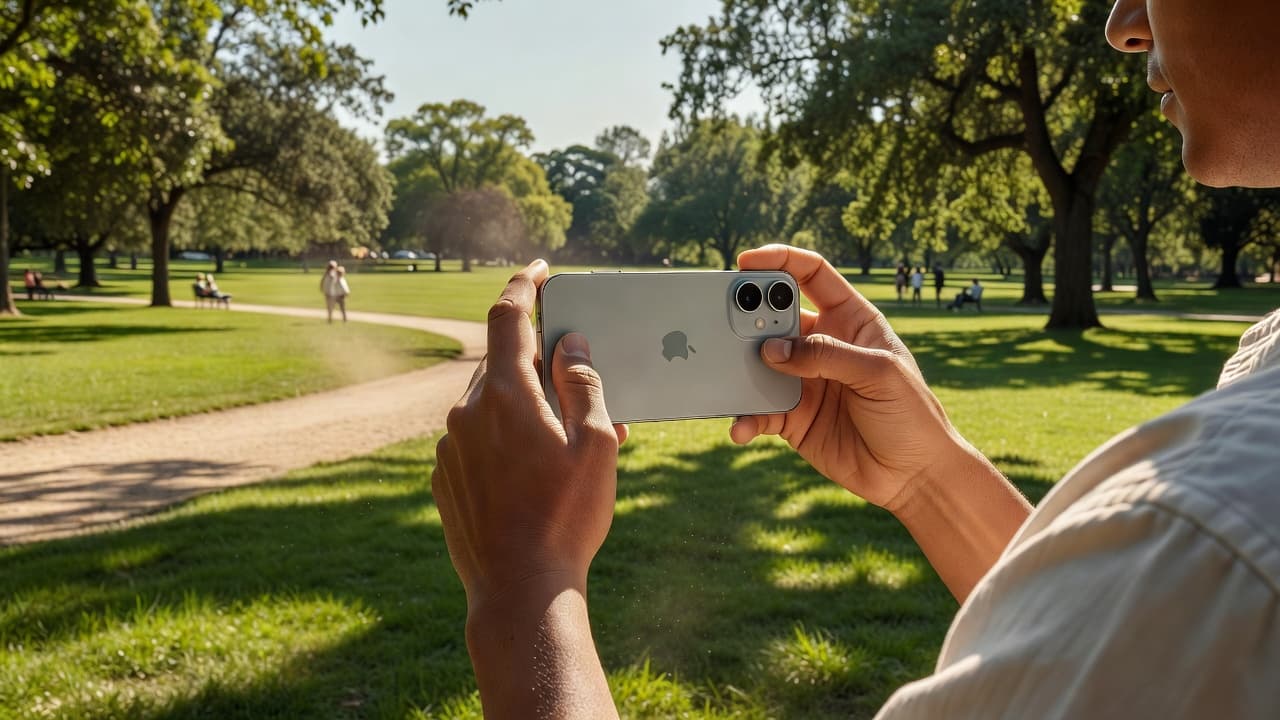
A simple habit helps a lot here, hold the phone still for a second before and after you tap. That small pause can keep your photos sharper.
Use helpful camera tools like zoom, flash, and portrait mode
The camera has a few tools that are easy to use and useful in the right moment. Zoom helps when your subject is far away, such as a sign, a grandchild on a stage, or a bird in the yard. On most screens, you can tap the zoom number or pinch the screen to move in and out.
Use zoom with care, because too much zoom can make the image look softer. If you can, move a little closer instead.
Flash helps in dim rooms or evening settings, but it can also make some photos look harsh. Try a normal photo first. If the subject looks too dark, turn flash on and test it again.
Portrait mode on the iPhone 16 for Seniors is useful when you want a person to stand out from the background. It blurs the area behind the subject and gives the picture a softer look. For a family photo or profile-style shot, it often works well. For a group shot or a scene with lots of detail, plain photo mode may be better.
When a photo feels crowded, simpler settings usually give you a better result.
The front and back cameras on the iPhone 16 for Seniors are easy to switch, too. Tap the camera flip icon to move between the selfie camera and the main rear camera. Use the front camera for FaceTime-style photos or self-portraits, and use the back camera for most other shots.
For a few more practical iPhone camera tips, simple iPhone photography tools can be a helpful extra reference.
Find, view, and share your photos safely
Every photo and video you take goes into the Photos app automatically on the iPhone 16 for Seniors. Open Photos, then tap Recents or Library to see what you just captured. Your newest picture usually appears near the end of the grid, so it is easy to spot right away.
Tap a photo to view it full screen. If it looks good, swipe left or right to move through the rest of your pictures. You can also zoom in with two fingers if you want a closer look at a face or detail.
Sharing is straightforward. Open the photo, tap the Share button, then choose Messages, Mail, or another app you trust. After that, pick the person you want to send it to and tap send.
A few safety habits keep sharing simple and private:
- Send photos only to people you know.
- Check the recipient before you tap send.
- Avoid sharing personal pictures in public groups.
- Use Messages or Mail when you want a direct, private share.
If you want to save space or keep favorites easy to find, mark important photos with the heart icon. That puts them in your Favorites album, so family pictures and special moments stay close at hand.
At DailyDealSpot24, our testing suite for 2026 involves more than just plugging in a dongle.