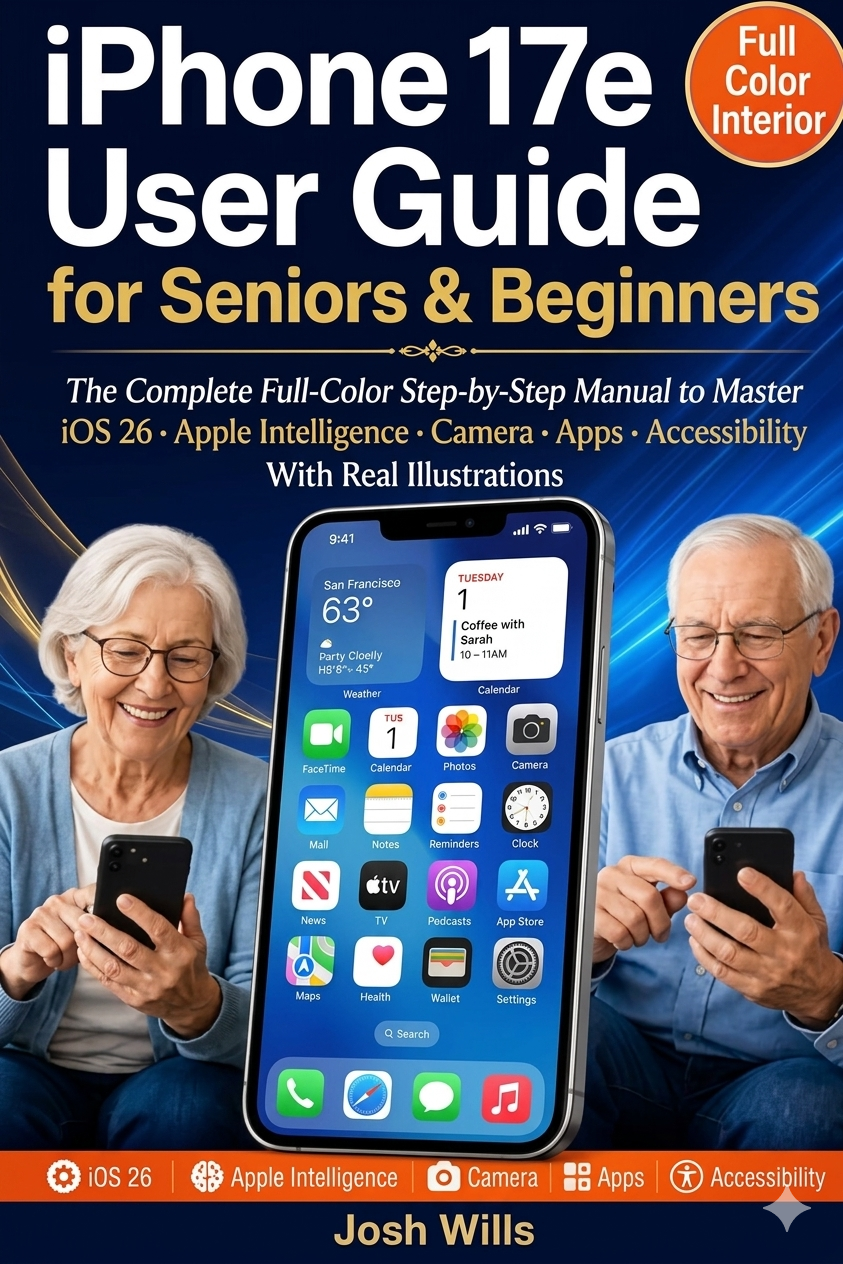
A new phone can feel like a lot at first, especially if this is your first iPhone. The good news is simple: using this iPhone 17e guide gets much easier when you learn it in small steps.
This guide is written for seniors and first-time users who want clear help without tech-heavy language. You’ll learn the first setup screens, the basics of iOS 26, helpful Apple Intelligence tools, camera tips, app basics, and the accessibility settings that make daily use more comfortable. You don’t need to learn everything today, because one small success at a time is enough.
Set Up Your iPhone 17e the Easy Way
What to do first when you turn on the phone
When the phone starts, follow the welcome screens in order:
- Pick your language and region.
- Join your home Wi-Fi.
- Sign in with your Apple ID, or create one.
- Create a passcode, then set Face ID or Touch ID if your phone offers it.
Each step matters. Wi-Fi helps the phone activate and restore data. Your Apple ID connects iCloud, the App Store, photos, and backups. A passcode protects your information if the phone is lost.
Don’t skip backups or rush through permission screens. A slower setup prevents headaches later.
If the phone asks for access to photos, contacts, or location, pause and read the screen. You can change most permissions later in Settings.

Move your data from an old iPhone or Android phone
If you are following this iPhone 17e guide and already have an older iPhone, place it near the new one and use Quick Start when it appears. This is the easiest way to move contacts, photos, messages, and many apps.
Starting fresh can be smarter if your old phone is cluttered or full of apps you no longer use. Keep what matters most, then add the rest later. If you want a slow visual demo, this beginner iPhone walkthrough on YouTube is a useful companion.
Learn iOS 26 with our iPhone 17e Guide
Understand the Home Screen, Control Center, and App Library
The Home Screen is your main starting point. It shows the apps you use most. Swipe left or right to move between pages. Swipe left past the last page to open the App Library, where all apps are grouped for you.
For quick controls, open Control Center by swiping down from the top-right corner. That’s where you’ll find brightness, volume, Wi-Fi, Bluetooth, and the flashlight. Swipe down from the top edge to see notifications.
Updating iOS matters, too, because updates fix bugs and add safety improvements. Open Settings, tap General, then Software Update. If an update is ready, install it when the phone is charged and connected to Wi-Fi.
Make the screen easier to read and the phone easier to use
As highlighted earlier in this iPhone 17e guide, if the screen feels too small, go to Settings, Display & Brightness, or Settings, Accessibility. Turn on Larger Text, Bold Text, or Dark Mode if those make reading easier.
Too many alerts can feel noisy. Start by turning off notifications for apps you don’t need, such as games or shopping apps. A calmer phone is easier to use every day. For more everyday practice, this iPhone beginner video guide shows common tasks in plain language.
Use Apple Intelligence, Camera, and Apps with Confidence
How Apple Intelligence can help with daily tasks
If Apple Intelligence is available and turned on, it can save time with simple jobs. For example, this iPhone 17e guide recommends using it to help rewrite a text message, shorten a long note, or suggest a reply when you don’t want to type much.
That doesn’t mean you should trust every result without reading it. Always review what it writes before sending it. It’s best for quick help, not for anything personal or sensitive that needs your full judgment.
Take better photos and videos with the Camera app
Open Camera from the Home Screen or Lock Screen. Hold the phone steady, then tap the white shutter button to take a photo. For video, switch to Video and tap the red button.
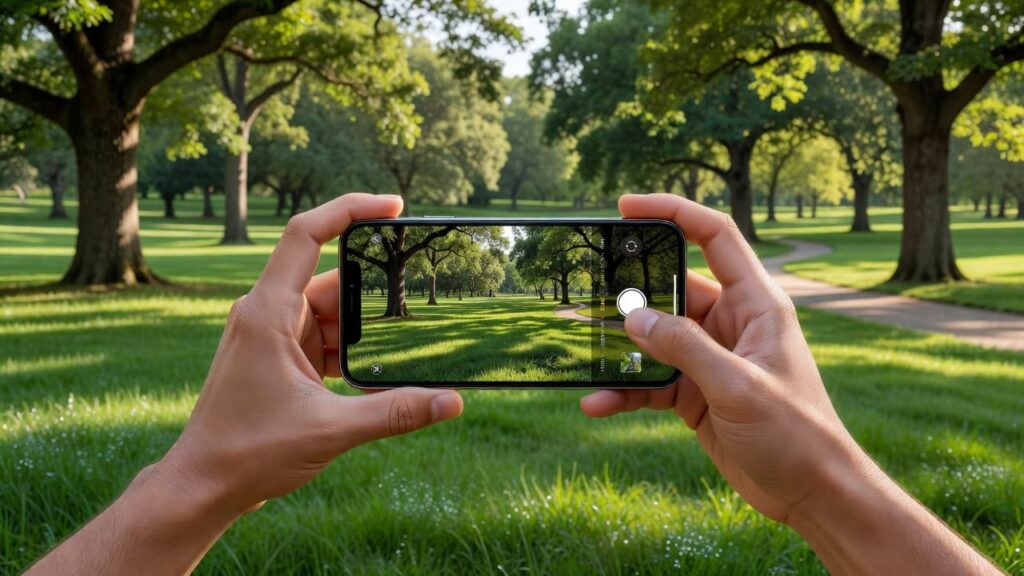
Use the on-screen zoom buttons, or pinch the screen, but don’t zoom too far unless you need to. To get the most out of your camera, this iPhone 17e guide suggests ensuring light is in front of the subject, not behind it.
Find, install, and manage the apps you need
Open the App Store and tap Search. Type the app name, or search by task, such as weather, video call, or pharmacy. This iPhone 17e guide recommends that when you find an app you trust, tap Get or the price button, then confirm with Face ID, Touch ID, or your passcode.
Once installed, tap the icon to open it. You usually don’t need to close apps all the time. If an app freezes, swipe up from the bottom, pause, then swipe the app away. To delete an app, touch and hold its icon, then tap Remove App. Stick with apps from well-known companies, because a careful app list keeps your phone safer and simpler.
Make the iPhone 17e Easier to See, Hear, and Hold
Helpful accessibility settings for vision and hearing
The best accessibility tools are easy to turn on. In Settings, Accessibility, you can use Larger Text, Bold Text, Zoom, Spoken Content, and VoiceOver. If hearing is a concern, look for hearing device support, mono audio, and LED flash alerts.
The flashlight in Control Center also helps in dark rooms or when reading labels. A few small changes can make the whole phone feel friendlier.
Everyday habits that make the phone feel safer and easier
Use a good case, and charge the phone before the battery gets too low. As suggested in this iPhone 17e guide, check battery condition in Settings if the phone starts draining fast. Put your most-used apps in the Dock so they’re always easy to reach.
If taps or gestures feel hard, turn on AssistiveTouch for an on-screen control button. Keep your passcode memorable but not obvious. Some people also learn better with a printed reference nearby, such as this illustrated iPhone guide for seniors.
Final Thoughts
Following a clear iPhone 17e guide makes mastering your new smartphone a stress-free experience. Take your time to practice these steps daily, and soon you will feel completely confident using your device.
Pick one feature today and try it twice. Change the text size, send a photo, or install one trusted app. That’s how confidence grows, slowly and steadily.
At DailyDealSpot24, our testing suite for 2026 involves more than just plugging in a dongle.