
Introduction
Smartphones have become an important part of everyday life, helping people stay connected with family, manage appointments, take photos, and access emergency services. However, many older adults find modern technology intimidating because of small icons, unfamiliar terminology, and complicated settings.

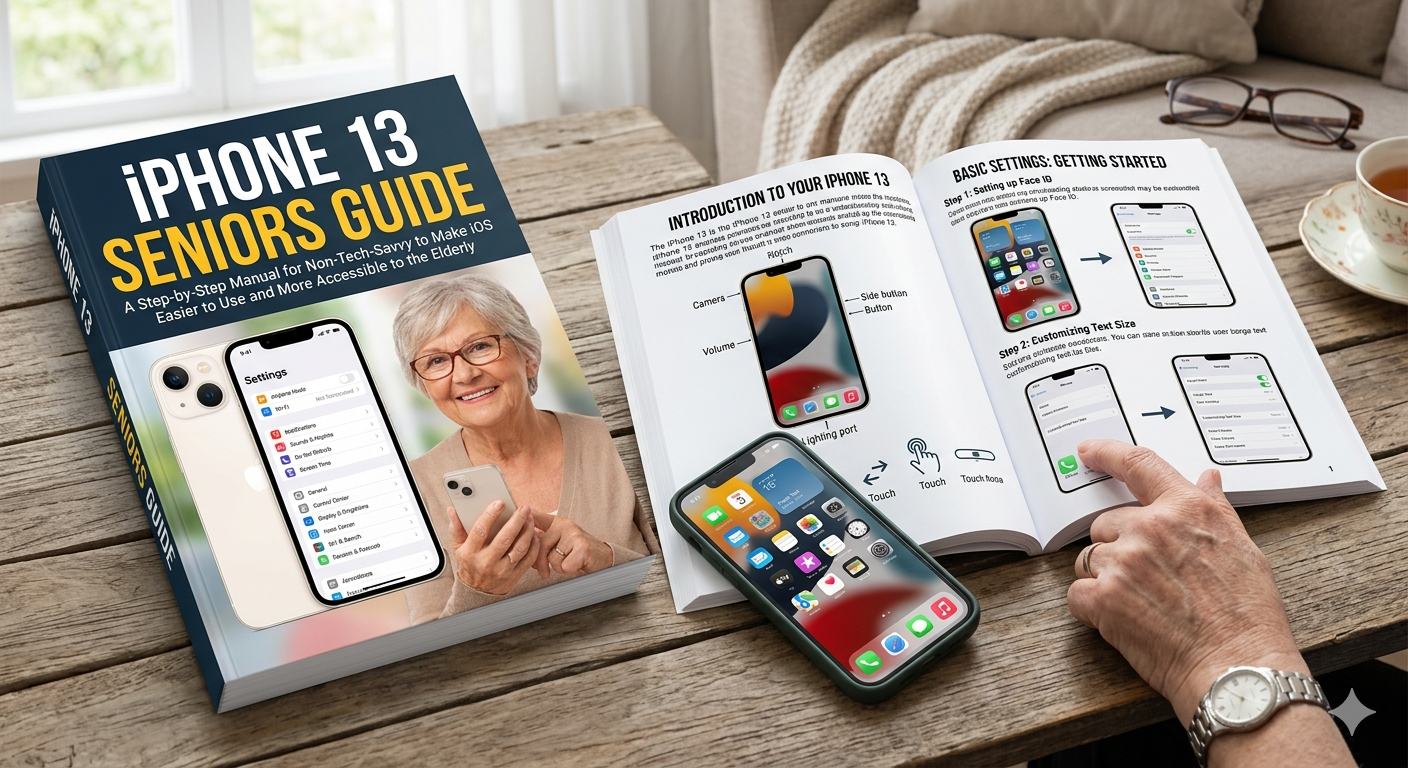
This iPhone 13 Seniors Guide is designed specifically for seniors and beginners who want to learn how to use their iPhone confidently. Whether you’re setting up your first smartphone or helping an elderly parent become more comfortable with technology, this guide explains everything in simple, easy-to-follow steps.
By the end of this guide, you’ll know how to make the iPhone 13 easier to see, hear, navigate, and use daily.
Why the iPhone 13 Is Ideal for Seniors
The iPhone 13 remains one of the best smartphones for older adults because it combines powerful features with a user-friendly design.
Benefits include:
- Large and bright display
- Easy-to-use touchscreen interface
- Strong battery life
- Excellent camera quality
- Emergency safety features
- Built-in accessibility tools
- Reliable software updates
- Voice control and Siri assistance
These features make the iPhone 13 an excellent choice for seniors who want a dependable device without unnecessary complexity.
iPhone 13 Seniors Guide: First-Time Setup
When turning on the iPhone 13 for the first time, follow these steps:
Step 1: Power On the Device
Press and hold the Side Button until the Apple logo appears.
Step 2: Select Language
Choose your preferred language and region.
Step 3: Connect to Wi-Fi
Select your home Wi-Fi network and enter the password.
Step 4: Create an Apple ID
An Apple ID allows access to:
- App Store
- FaceTime
- iCloud Backup
- Find My iPhone
- Apple Services
If you already have an Apple ID, simply sign in.
Step 5: Set Up Face ID
Face ID allows the phone to unlock automatically by recognizing your face.
Follow the on-screen instructions to scan your face from different angles.
Step 6: Complete Setup
Continue through the setup process and choose recommended settings if unsure.
iPhone 13 Seniors Guide: Understanding the Home Screen
The Home Screen is where you’ll spend most of your time.
Key items include:
App Icons
Apps appear as small icons.
Examples include:
- Phone
- Messages
- Camera
- Photos
- Settings
- Safari
Dock
The bottom row stays visible on every Home Screen page.

Common apps stored here include:
- Phone
- Messages
- Safari
- Camera
Control Center
Swipe down from the upper-right corner to access:
- Wi-Fi
- Bluetooth
- Flashlight
- Brightness controls
- Volume controls
Making Text Larger on the iPhone 13
One of the first adjustments seniors should make is increasing text size.
Steps to Increase Text Size
- Open Settings.
- Tap Display & Brightness.
- Select Text Size.
- Drag the slider to the right.
This instantly makes text easier to read.
Enable Bold Text
For better readability:
- Open Settings.
- Tap Display & Brightness.
- Turn on Bold Text.
Many seniors find this feature significantly improves visibility.
iPhone 13 Seniors Guide: Accessibility Settings
Apple provides many accessibility tools specifically designed for elderly users.
Larger Accessibility Text
To enable extra-large fonts:
- Open Settings.
- Select Accessibility.
- Tap Display & Text Size.
- Choose Larger Text.
- Enable Larger Accessibility Sizes.
Zoom Feature
Zoom enlarges the screen.
To enable:
- Open Settings.
- Select Accessibility.
- Tap Zoom.
- Turn Zoom On.
Double-tap with three fingers to activate magnification.
Reduce Motion
Animations can feel distracting.
To reduce motion:
- Open Settings.
- Accessibility.
- Motion.
- Turn on Reduce Motion.
Using Siri for Hands-Free Assistance
Siri acts as a personal voice assistant.
Activate Siri by saying:
“Hey Siri”
Examples of commands:
- Call my daughter.
- Send a text message.
- Set a reminder.
- What’s the weather today?
- Open Camera.
- Turn on flashlight.
Siri can simplify daily phone use dramatically for seniors.
iPhone 13 Seniors Guide: Setting Up Emergency Features
Safety features are among the most valuable tools available.
Medical ID
Medical ID provides emergency responders with important information.
To set up:
- Open Health app.
- Tap your profile.
- Select Medical ID.
- Enter health information.
- Save.
Emergency SOS
Emergency SOS can quickly contact emergency services.
To activate:
- Open Settings.
- Emergency SOS.
- Enable desired options.
This feature can be life-saving during emergencies.
Managing Phone Calls Easily
Many seniors primarily use smartphones for communication.
Answering Calls
Tap the green button to answer.
Ending Calls
Tap the red button.
Adjusting Call Volume
Use the volume buttons on the side of the phone.
Adding Favorite Contacts
- Open Phone app.
- Select Favorites.
- Tap Add.
- Choose important contacts.
This allows one-touch calling.
iPhone 13 Seniors Guide: Sending and Receiving Text Messages
Messages are an easy way to stay connected.
Sending a Message
- Open Messages.
- Tap the compose button.
- Select a contact.
- Type your message.
- Tap Send.
Using Voice Dictation
Instead of typing:
- Open Messages.
- Tap the microphone icon.
- Speak naturally.
- Tap Send.
Voice dictation is especially useful for seniors with arthritis or vision difficulties.
Taking Better Photos
The iPhone 13 camera is simple yet powerful.
Taking a Picture
- Open Camera.
- Point at the subject.
- Tap the white shutter button.
Viewing Photos
- Open Photos app.
- Browse your pictures.
Sharing Photos
Tap Share and choose:
- Messages
- AirDrop
Sharing family memories becomes quick and easy.
iPhone 13 Seniors Guide: Internet Browsing Basics
Safari is Apple’s web browser.
Opening a Website
- Open Safari.
- Tap the address bar.
- Type a website address.
- Press Go.
Increasing Website Text Size
- Open a webpage.
- Tap AA in the address bar.
- Select Larger Text.
This helps improve reading comfort.
Organizing Apps for Simplicity
Too many apps can feel overwhelming.
Remove Unnecessary Apps
Press and hold an app icon.
Tap Remove App.
Create a Simple Layout
Keep frequently used apps on the first screen:
- Phone
- Messages
- Camera
- Photos
- Settings
This reduces confusion and improves navigation.
iPhone 13 Seniors Guide: Hearing Assistance Features
The iPhone includes several hearing-related accessibility tools.
LED Flash Alerts
The flash can blink when receiving notifications.
Enable by:
- Settings.
- Accessibility.
- Audio/Visual.
- LED Flash for Alerts.
Headphone Accommodations
Improves audio quality for hearing needs.
Found under:
Settings → Accessibility → Audio/Visual
Live Listen
Turns the iPhone into a basic listening aid when paired with AirPods.
Many seniors find this feature extremely helpful.
Battery Tips for Older Adults
The iPhone 13 has excellent battery life, but these tips can extend it further.
Lower Screen Brightness
Reduce brightness when indoors.
Enable Low Power Mode
- Settings.
- Battery.
- Low Power Mode.
Keep Software Updated
Updates often improve battery efficiency.
iPhone 13 Seniors Guide: Protecting Against Scams
Seniors are frequent targets of phone scams.
Common Warning Signs
- Requests for gift cards
- Urgent payment demands
- Unknown links in texts
- Fake tech support calls
Safety Rules
Never:
- Share passwords
- Share verification codes
- Give banking information to unknown callers
If unsure, contact a trusted family member before responding.
Backing Up Your iPhone
Backups protect important data.
Enable iCloud Backup
- Open Settings.
- Tap your name.
- Select iCloud.
- Choose iCloud Backup.
- Turn it on.
The phone will automatically save data regularly.
Advanced iPhone 13 Seniors Guide Features
Once comfortable with basic tasks, seniors can explore additional tools.
FaceTime Video Calls
FaceTime makes seeing loved ones easy.
Reminders App
Create reminders for:
- Medications
- Doctor appointments
- Birthdays
Calendar
Track important events and appointments.
Voice Memos
Record notes and reminders using your voice.
These tools help seniors stay organized and independent.
Common Problems and Simple Solutions
Phone Running Slowly
Restart the device.
Wi-Fi Not Working
Turn Wi-Fi off and back on.
Frozen Screen
Force restart the phone.
Forgotten Password
Use Apple’s account recovery process.
Most issues can be solved with these simple troubleshooting steps.
Conclusion
This iPhone 13 Seniors Guide demonstrates that learning modern technology doesn’t have to be difficult. Apple’s iPhone 13 includes numerous accessibility features that help older adults stay connected, informed, and safe.
By increasing text size, enabling accessibility settings, learning basic communication tools, and using safety features like Emergency SOS, seniors can confidently enjoy all the benefits of modern smartphone technology.
The key is to learn one feature at a time. With patience and practice, even users with little technical experience can become comfortable using their iPhone 13 every day. Whether communicating with family, managing appointments, taking photos, or accessing emergency assistance, the iPhone 13 can be a valuable companion that enhances independence and quality of life.
At DailyDealSpot24, our testing suite for 2026 involves more than just plugging in a dongle.