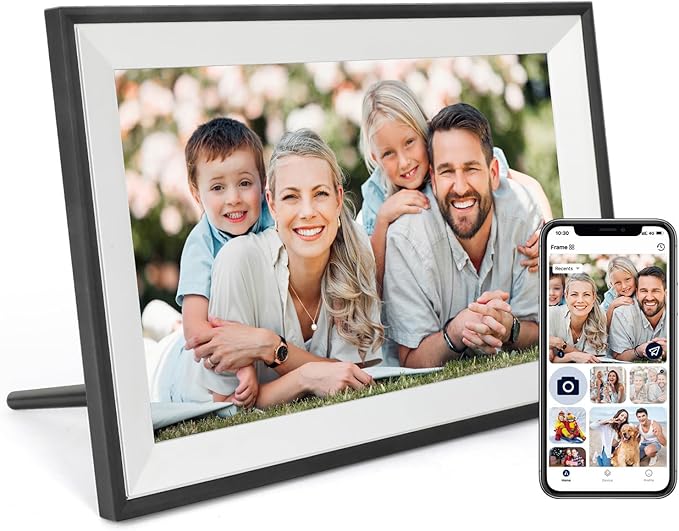
If you just bought a 10.1-Inch Wi-Fi Digital Photo Frame or received one as a gift, you already know how amazing it is to see your favorite memories cycle through a vibrant screen. But most people only use about 20% of what these smart home devices can actually do. Beyond simply looping a basic slideshow, today’s smart frames offer hidden settings, smart app integrations, and versatile placement options that can completely transform your living space. Let’s look at how to unlock the full potential of your frame, from styling your home to mastering the technical settings.
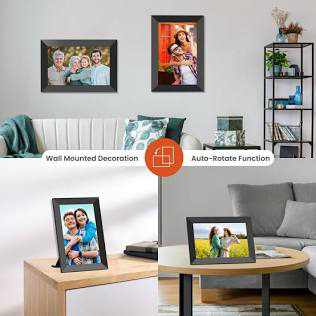
One of the best design aspects of a 10.1-inch digital frame is its physical versatility. Because it perfectly mimics the scale of traditional 5 \times 7 or 8 \times 10 photo prints, it fits into almost any room design.
1. Setting Up Your 10.1-Inch Wi-Fi Digital Photo Frame on a Desktop.
Most frames come with a sturdy, detachable back-stand. When placing your frame on a coffee table, nightstand, or desk, keep these two tips in mind:
Hide the Cable: Digital frames require constant power to run their vibrant IPS screens. Position the frame near a decorative item, like a small potted plant or a stack of books, to elegantly conceal the power cord running to the outlet.
Eye-Level Rule: Place the frame on surfaces that sit slightly below eye level when you are seated. This ensures the best contrast and clarity whenever you glance over.
2. The Wall-Mounted Gallery Wall
Many modern frames include built-in VESA holes or mounting slots on the back. You can hang the frame directly on your wall in either portrait or landscape mode.
Design Tip: Integrate your digital frame into a “gallery wall” surrounded by traditional, static black-and-white printed frames. The mix of moving digital memories alongside classic prints creates a stunning, dynamic focal point in any living room.
Mastering the Mobile Ecosystem (Frameo & Beyond)
The real magic of a modern 10.1-Inch Wi-Fi Digital Photo Frame layouts. happens through its companion software. The industry standard for most budget and premium frames alike is the Frameo or Whale Photo ecosystem.
Multi-User Family Syncing
Do not keep the frame to yourself. You can generate a unique, secure pairing code from your frame’s settings menu and send it to family members across the globe. Once they input the code into their free smartphone app, your siblings, parents, or friends can instantly beam photos directly to your living room screen from anywhere in the world.
Captions and Reactions
When sending a photo via the app, you can type out a quick caption (e.g., “Leo’s first time at the beach! 🏖️”). Modern frames display these captions elegantly along the bottom corner of the image. Some updated operating systems even allow the frame owner to tap the screen and send a “Like” or a heart emoji back to the sender’s phone, making photo sharing a two-way conversation.
3 Hidden Settings You Should Change Right Away
When you first boot up your frame, it will run on default factory settings. To save energy and improve your viewing experience, change these three settings immediately:
1. Optimize the Sleep Timer / Motion Sensor
Running a digital frame 24 hours a day wastes electricity and reduces the lifespan of the screen backlight.
Navigate to Settings > Display and set an automatic sleep timer so the frame turns off completely when you are asleep (e.g., Off at 11:00 PM, On at 7:00 AM).
If your model features a built-in motion sensor, turn it on! This tells the frame to sleep automatically if no one is in the room and instantly wake up the moment someone walks by.
2. Adjust Fit-to-Frame vs. Original Aspect Ratio
Because smartphone cameras capture photos in different dimensions (like 4:3 or 16:9) compared to the frame’s native 16:10 screen layout, some images might show black bars on the sides.
Fit-to-Frame (Blurry Borders): This fills the entire screen by taking the empty side margins and filling them with a beautiful, blurred reflection of the photo itself.
Crop to Fill: This stretches the photo to fill every single pixel of the 10.1-Inch Wi-Fi Digital Photo Frame. If you use this setting, make sure to use the touchscreen to manually drag and adjust the focus point so no one’s head gets cut off!
3. Adjust Slideshow Playback Intervals
The default transition timer is usually set to 10 or 15 seconds, which can feel dizzying and distracting in a peaceful room. Change the slide interval to 5 minutes, 30 minutes, or even once an hour. A slower transition makes the frame feel like a natural piece of changing artwork rather than a flashing television screen.
Creative Ways to Use Your Frame (Beyond Family Photos)
If you want to think outside the box, a 10.1-Inch Wi-Fi Digital Photo Frame can serve several other unique purposes around your home or office:
Digital Recipe Book for the Kitchen: Mount the frame on your kitchen wall or prop it up on the counter. Use the app to send screenshots of your favorite recipes, ingredient measurement charts, or cooking steps for quick, hands-free reading while preparing meals.
A Dynamic Vision Board: Want to stay motivated? Dedicate a folder on your phone to your goals—travel destinations, dream home designs, fitness targets, or motivational quotes—and stream them continuously next to your work desk.
Business Signage or Portfolio Display: If you run a small business, a photography studio, or a local shop, place the frame at the checkout counter or reception desk to showcase customer reviews, menu items, upcoming sales, or a portfolio of your best work.
Final Checklist Before You Buy or Gift
If you are currently shopping around for a new 10.1-Inch Wi-Fi Digital Photo Frame, make sure it ticks these critical boxes:
IPS Touchscreen: Avoid older models that use buttons or physical remotes. A touchscreen makes setup ten times easier.
At least 32GB Storage: This ensures you can hold tens of thousands of images locally without relying constantly on an internet connection to view them.
No Subscription Fees: Ensure the companion app allows unlimited photo transfers without requiring a monthly paid premium account. With the right setup and a few tweaks to your settings, a 10.1-Inch Wi-Fi Digital Photo Frame becomes a beautiful centerpiece that brings hidden digital memories straight into the heart of your home.
Contains information related to marketing campaigns of the user. These are shared with Google AdWords / Google Ads when the Google Ads and Google Analytics accounts are linked together.
90 days
__utma
ID used to identify users and sessions
2 years after last activity
__utmt
Used to monitor number of Google Analytics server requests
10 minutes
__utmb
Used to distinguish new sessions and visits. This cookie is set when the GA.js javascript library is loaded and there is no existing __utmb cookie. The cookie is updated every time data is sent to the Google Analytics server.
30 minutes after last activity
__utmc
Used only with old Urchin versions of Google Analytics and not with GA.js. Was used to distinguish between new sessions and visits at the end of a session.
End of session (browser)
__utmz
Contains information about the traffic source or campaign that directed user to the website. The cookie is set when the GA.js javascript is loaded and updated when data is sent to the Google Anaytics server
6 months after last activity
__utmv
Contains custom information set by the web developer via the _setCustomVar method in Google Analytics. This cookie is updated every time new data is sent to the Google Analytics server.
2 years after last activity
__utmx
Used to determine whether a user is included in an A / B or Multivariate test.
18 months
_ga
ID used to identify users
2 years
_gali
Used by Google Analytics to determine which links on a page are being clicked
30 seconds
_ga_
ID used to identify users
2 years
_gid
ID used to identify users for 24 hours after last activity
24 hours
_gat
Used to monitor number of Google Analytics server requests when using Google Tag Manager